
Zoom Profile Picture: How to Set It and What to Use (2026)

Introduction
Your Zoom profile picture is the image people see when your camera is off, when you dial in before joining video, or when you step away mid-meeting. On a platform built for face-to-face contact, a blank gray circle or a stretched selfie undercuts the professional presence you are trying to build. The good news: setting a clean Zoom profile picture takes about two minutes, and the same photo can carry across LinkedIn, email, and your company directory.
This guide answers the core question first. To change your Zoom profile picture, open your profile in the desktop app or at zoom.us, click your current avatar, upload a square photo, crop it, and save. Below, we walk through the exact steps for desktop, mobile, and admin-locked accounts, then cover the part most people skip: choosing a photo that still looks professional when your video is off.
Whether you join three calls a day or run them, a credible Zoom profile photo is one of the easiest wins in your remote setup.
Key Takeaways
- Setup is fast: change your Zoom profile picture through the desktop client, the web portal at zoom.us, or the mobile app in under two minutes.
- Camera-off coverage matters most: your photo is what colleagues see whenever your video is muted, so treat it like a live headshot, not an afterthought.
- Use a square, well-lit headshot: Zoom displays profile photos as circles, so a centered face on a clean background reads best.
- Managed accounts can be locked: if your organization controls Zoom settings, you may need an admin to enable or update your photo.
- One photo, many channels: the same headshot works for Zoom, LinkedIn, email, and your company page. Crop it correctly once and reuse it.
What Is a Zoom Profile Picture?
A Zoom profile picture is the static image tied to your Zoom account. It appears in several places: in the meeting grid when your camera is off, in the participant list, in the waiting room, in Zoom Chat, and on your account profile. Unlike a one-time virtual background, your profile photo is persistent. It represents you across every meeting until you change it.
There are two separate images people often confuse. Your profile picture is the account-level photo that shows when video is off. A virtual background replaces what appears behind you only while your camera is on. This guide focuses on the profile picture, because that is the image that stands in for you during the parts of a call when you are not on camera.
Zoom displays profile photos in a circular frame, even though you upload a square or rectangular file. That matters for cropping: anything near the corners of your image gets cut off. According to Zoom's official support documentation, you can upload a standard image file and adjust the crop before saving, so you control exactly which part of the photo shows.
For a square source photo, aim for at least 400 × 400 pixels so the image stays sharp on larger displays, and keep the file under a few megabytes to avoid upload errors. A higher-resolution square crop keeps the photo sharp on retina and 4K monitors.
Why Your Zoom Profile Picture Matters
Remote and hybrid work has turned video calls into the default meeting room. Surveys of distributed teams, such as the Buffer State of Remote Work report, consistently show that a large share of professionals now work remotely at least part of the week. That means your Zoom tile is often the first and most frequent impression a client or colleague forms of you.
Here is the practical reality: cameras get turned off constantly. People mute video to save bandwidth, hide a messy room, eat lunch, or simply give their eyes a break. In every one of those moments, your profile picture is doing the work your face normally would. A polished headshot keeps you present and credible. A default initial or a dim phone selfie makes you look disengaged.
A consistent, professional photo also builds recognition. When the same clear headshot appears on your Zoom tile, your LinkedIn profile, and your email signature, people connect your name to your face faster. That continuity is quiet but valuable. It signals that you take your professional presence seriously without saying a word.
How to Change Your Zoom Profile Picture

You can update your Zoom profile photo from the desktop client, the web portal, or the mobile app. Pick whichever you have open; the photo syncs across all of them because it is stored at the account level.
Change your Zoom profile picture on desktop
- Open the Zoom desktop client and sign in.
- Click your profile icon in the top-right corner.
- Select My Profile (this opens the web portal) or Settings > Profile.
- Click your current picture or the camera icon over the avatar.
- Choose Upload (or Change Picture), select your file, then drag the crop box to frame your face.
- Click Save. The new photo appears immediately in meetings when your camera is off.
Change it in the web portal (zoom.us)
- Go to zoom.us and sign in to your account.
- Open Profile from the left menu.
- Click the photo thumbnail next to your name.
- Select Change, upload your image, adjust the crop, and click Save.
Change it on mobile (iOS or Android)
- Open the Zoom app and tap More in the bottom bar.
- Tap your name at the top to open your profile.
- Tap Profile Photo.
- Choose Take Photo or Choose from Album, crop, and confirm.
When your account is admin-locked
If you use Zoom through a company or school, an administrator may manage your profile settings. In that case you might see a grayed-out photo field, a message that the setting is locked, or no upload option at all. When that happens:
- Check whether your organization uses single sign-on (SSO). Some setups pull your photo from a connected directory like Microsoft 365 or Google Workspace, so you may need to update the source photo there instead.
- Ask your IT or Zoom admin to enable user-level profile photo changes, or to upload the image for you.
- If profile photos are disabled entirely, your initials or a company default will show when your camera is off. That is an account policy, not a bug on your end.
Here is a quick reference for photo specs so your upload looks sharp across devices:
| Setting | Recommendation |
|---|---|
| Shape displayed | Circle (upload a square file) |
| Minimum resolution | 400 × 400 px |
| Ideal resolution | 800 × 800 px or higher for retina displays |
| File format | JPG or PNG |
| File size | Keep it a few MB or less to avoid upload errors |
| Framing | Face centered, shoulders visible, clean margins |
If your photo is not square, crop it before uploading so Zoom does not cut off the top of your head or your chin. A free utility like the LinkedIn photo resizer includes a Zoom row in its size table, so you can export a correctly sized square in seconds and reuse it across platforms.
Create Professional Headshots in Minutes
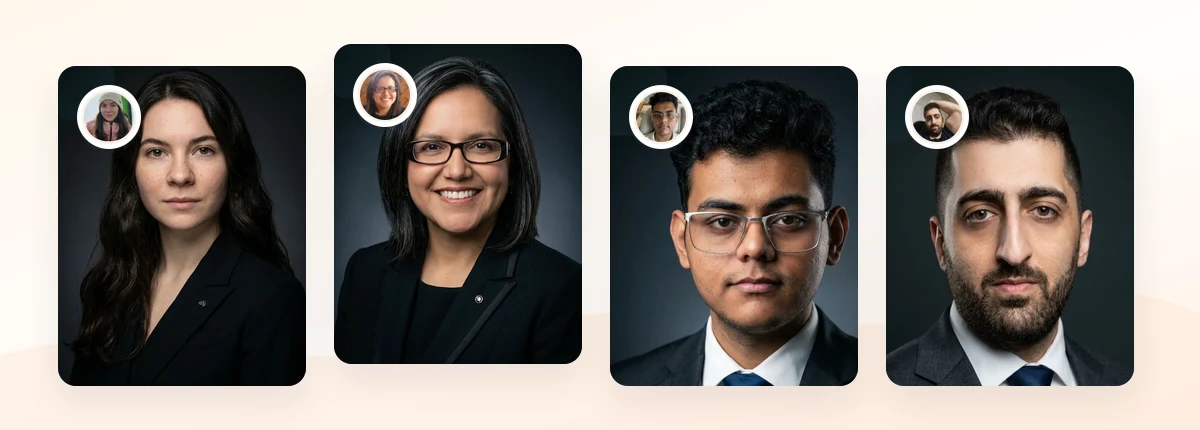
Upload 5-20 everyday photos and get 40-100 polished AI headshots for LinkedIn, resumes, company pages, and executive bios.
15-30 minute delivery • Full commercial rights • One-time payment
Get My Headshots →Best Practices: What Photo Works When the Camera Is Off

Because your Zoom profile picture stands in for your live video, treat it like a working headshot rather than a casual avatar. The goal is a photo that looks consistent with how you actually appear on camera, with the same general style and the same level of polish, so colleagues see one coherent version of you whether your video is on or off.
Use these guidelines to choose a photo that holds up:
- Frame tight on your face. Zoom tiles are small and circular. A head-and-shoulders crop reads clearly; a full-body shot or group photo turns into a tiny blur.
- Favor even, front lighting. Soft daylight or a ring light avoids harsh shadows. Backlit windows and ceiling lights that darken your face are the most common problems.
- Pick a clean, uncluttered background. A neutral wall, soft office blur, or simple gradient keeps attention on you. If you want help deciding, our guide to choosing headshot backgrounds breaks down white, gray, and office options.
- Dress to match your meetings. If you wear a collared shirt or blazer on client calls, wear the same in your photo so your profile picture and live video feel consistent.
- Keep expression warm and direct. A relaxed, natural smile with eye contact reads as approachable and present, exactly what you want when your camera is off.
Remote workers who use business headshot options that match their on-camera appearance get the most value, because the photo no longer looks like a different person than the one who shows up when video turns on. The same file then slots neatly into LinkedIn, Slack, and your email signature.
If you already have a single strong headshot, our professional profile picture guide shows how to adapt one photo for Zoom, LinkedIn, and email without reshooting for each platform.
Create Professional Headshots in Minutes
Upload 5-20 everyday photos and get 40-100 polished AI headshots for LinkedIn, resumes, company pages, and executive bios.
15-30 minute delivery • Full commercial rights • One-time payment
Get My Headshots →Common Mistakes to Avoid
Most weak Zoom profile pictures fail for predictable reasons. Watch for these:
- Leaving the default initials. A colored circle with your initials is the clearest sign nobody set up a photo. It reads as low effort on client-facing calls.
- Uploading a group or vacation photo. When Zoom shrinks and circles the image, viewers cannot tell which face is yours. Use a solo headshot.
- Ignoring the circular crop. A rectangular photo with your head near the top gets clipped. Center your face and leave margin around it.
- Using a low-resolution selfie. Tiny, grainy, or heavily filtered photos look worse on large monitors than on your phone. Export a sharp, square file.
- Letting the photo go stale. If you have changed your hair, glasses, or general look, refresh the photo so it matches the person on the live call.
- Mismatching your channels. A formal headshot on LinkedIn and a party photo on Zoom sends mixed signals. Keep your professional photo consistent across platforms.
Fixing any one of these takes minutes, and the payoff shows up in every meeting: you look present and credible the moment your camera goes off.
Final Thoughts
Your Zoom profile picture is small, but it works hard. It represents you every time your camera is off, in the waiting room, and across the participant list. Changing it is quick on desktop, mobile, or the web portal, and even admin-locked accounts usually have a path through IT or a connected directory. The harder part is choosing a photo that still looks professional and consistent with your live video: a centered, well-lit headshot on a clean background.
Start by exporting one square, high-resolution headshot, crop it correctly, and reuse it across Zoom, LinkedIn, and email so your presence stays consistent everywhere. If you do not have a photo you are happy with, a polished professional headshot is the one asset that upgrades every video call and profile at once, and you can create one using the CTA below.
Create Professional Headshots in Minutes
Upload 5-20 everyday photos and get 40-100 polished AI headshots for LinkedIn, resumes, company pages, and executive bios.
15-30 minute delivery • Full commercial rights • One-time payment
Get My Headshots →Frequently Asked Questions
How do I change my Zoom profile picture?
Open the Zoom desktop client or go to zoom.us, click your profile icon, select My Profile or Profile, click your current avatar, upload a square photo, adjust the crop, and save. On mobile, tap More, then your name, then Profile Photo. The new image syncs across all your devices.
Why can't I change my Zoom profile photo?
If you use Zoom through an employer or school, an administrator may have locked profile photo settings or linked your photo to a directory like Microsoft 365 or Google Workspace. Update the source photo in that connected account, or ask your Zoom admin to enable user-level photo changes.
What size should a Zoom profile picture be?
Use a square image of at least 400 × 400 pixels, with 800 × 800 or higher recommended for sharpness on large and retina displays. Keep the file a few megabytes or smaller to avoid upload errors, and remember Zoom displays it as a circle, so center your face.
Does my Zoom profile picture show when my camera is off?
Yes. Whenever your video is turned off, Zoom displays your profile picture in your meeting tile, the participant list, and the waiting room. That is exactly why it is worth using a clean, professional headshot rather than leaving the default initials.
Can I use the same photo for Zoom, LinkedIn, and email?
Yes, and you should. Using one consistent headshot across Zoom, LinkedIn, and your email signature builds recognition and signals professionalism. Crop a square version for Zoom's circular frame, and reuse the same photo everywhere so people connect your name to one clear face.